GSMArena.com GSMArena.com

Tip us

2.1m
180k
RSS

EV

Merch

Log in

Login

I forgot my password
Sign up
  • Home
  • News
  • Reviews
  • Videos
  • Featured
  • Phone Finder
  • Deals
  • Merch
  • Coverage
  • Contact
ADVERTISEMENT
GSMArena team, 16 February, 2016

Aiming High


Huawei Honor 5X review: Aiming High

  • Comments (100)
  • User reviews
  • Honor 5X

4. User interface
  1. 1. Introduction
  2. 2. Unboxing and hardware
  3. 3. Display, connectivity, and battery life
  4. 4. User interface
  5. 5. Performance
  6. 6. Telephony, loudspeaker, and preinstalled apps
  7. 7. Gallery, media players, FM radio, and audio test
  8. 8. Camera
  9. 9. Conclusion
  10.  
  11. Honor 5X specification
  12. User opinions and reviews
  13. Review comments (100)

Android Huawei Honor DualSIM

User interface

EM UI, also known as Emotion UI, is Huawei's own skin layered over Android. The Honor 5X comes with EM UI 3.1 layered over Android Lollipop 5.1.1. There is an abundance of features packed into EM UI, most useful while others being more gimmicky than anything else.

Right off the bat, as soon as you unlock the device, you notice that there is no app drawer, there is no button that shows you a list of all your apps. Instead, they all show up on the homescreens just like on iOS. You can create folders and put away the icons you don't want to get in your way.
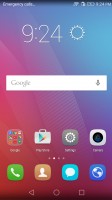
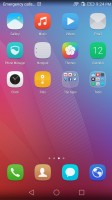
Home screens on stock launcher - Huawei Honor 5x review Home screens on stock launcher - Huawei Honor 5x review
Home screens on stock launcher

Though, organizing them might be easier than you think. You can organize your apps very similarly as you would with iOS, or you can create a folder by dragging one app icon onto another one. Once organized, the folder icons are grids rather than stock Android's stacks.
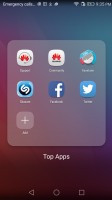
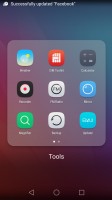
Folder view, look familiar? - Huawei Honor 5x review Folder view, look familiar? - Huawei Honor 5x review
Folder view, look familiar?

Naturally, one would worry about finding an app that's tucked away somewhere without a proper app drawer. You can intuitively flick down to bring up a search box. Typing a few letters will search through you apps, contacts, SMS, and even Twitter for any matching keywords.

If you dislike EM UI's launcher, you can always use an aftermarket one that suits your preference.
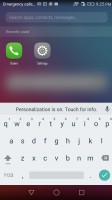
Quick search can be accessed by flicking down on any homescreen - Huawei Honor 5x review
Quick search can be accessed by flicking down on any homescreen

When setting up a fingerprint for security, the phone turns off all lock screen notifications by default so you would need to re-enable them.

Also, on the lock screen, is a quick toggle menu that can be accessed by swiping from the bottom edge that includes: music controls, shortcuts for voicemail, changing the wallpaper, settings, calculator, camera, and a toggle for the flashlight.

Quick panel is only available in the lock screen - Huawei Honor 5x review
Quick panel is only available in the lock screen

Setting up the fingerprint is easy and quick. Once set, a fingerprint can be assigned many functions other than just unlocking the device. You can assign a contact to a particular fingerprint which will unlock the phone and dial the contact upon scanning that finger. You can also use the fingerprint sensor to call the notification shade, the multitasking app switcher, or to answer a phone call.
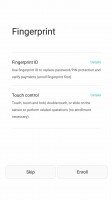

Possible fingerprint functions - Huawei Honor 5x review Registering a finger print takes about 6-9 scans - Huawei Honor 5x review Once added, a fingerprint can be used to launch an app or dial a contact - Huawei Honor 5x review
Possible fingerprint functions • Once added, a fingerprint can be used to launch an app or dial a contact

There is also an Applock and a Vault baked into the UI, which will protect certain apps and gallery albums from opening until the correct fingerprint is provided.

Themes are also available on the stock launcher; you can customize themes by changing the lock screen style, unlock animation, wallpapers, icons and font. Unfortunately, there is no apparent way to download more themes and the Honor 5X only comes with three themes pre-installed.
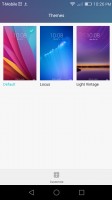
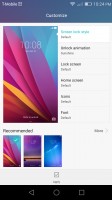
Themes menu and customization of themes - Huawei Honor 5x review Themes menu and customization of themes - Huawei Honor 5x review
Themes menu and customization of themes

Notifications can be customized for every individual app in EM UI. You can choose whether apps appear on the lock screen, banners over the status bar, and in the status bar itself.
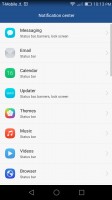
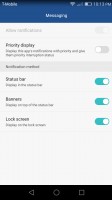
Notification center allows you to customize alerts on a per-app basis - Huawei Honor 5x review Notification center allows you to customize alerts on a per-app basis - Huawei Honor 5x review
Notification center allows you to customize alerts on a per-app basis

There are also some pretty nifty features baked into EM UI like a glove mode, sunlight enhancement, and one-handed UI.
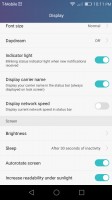
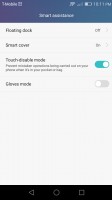
Various display settings - Huawei Honor 5x review Glove mode found in smart assistance menu - Huawei Honor 5x review
Various display settings • Glove mode found in smart assistance menu

Among the accessibility options are: Talkback, Switch access, high contrast text, power button ends the call, raise to ear to answer, color inversion, color correction, hearing options, and touch & hold delay times.
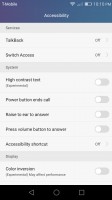
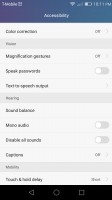
Accessibility options on the Honor 5X - Huawei Honor 5x review Accessibility options on the Honor 5X - Huawei Honor 5x review

Accessibility options on the Honor 5X

Next Page » 5. Performance
4. User interface
  1. 1. Introduction
  2. 2. Unboxing and hardware
  3. 3. Display, connectivity, and battery life
  4. 4. User interface
  5. 5. Performance
  6. 6. Telephony, loudspeaker, and preinstalled apps
  7. 7. Gallery, media players, FM radio, and audio test
  8. 8. Camera
  9. 9. Conclusion
  10.  
  11. Honor 5X specification
  12. User opinions and reviews
  13. Review comments (100)

Reviews Huawei Honor 5X reviewPage 4
  • Comments (100)
  • User reviews
  • Honor 5X

Phone finder

  • Samsung
  • Apple
  • Huawei
  • Nokia
  • Sony
  • LG
  • HTC
  • Motorola
  • Lenovo
  • Xiaomi
  • Google
  • Honor
  • Oppo
  • Realme
  • OnePlus
  • Nothing
  • vivo
  • Meizu
  • Ulefone
  • Alcatel
  • ZTE
  • RugOne
  • Umidigi
  • Fairphone
  • Oscal
  • Sharp
  • Micromax
  • Infinix
  • Asus
  • Tecno
  • Doogee
  • Blackview
  • Cubot
  • Oukitel
  • Itel
  • TCL

All brands Rumor mill

ADVERTISEMENT

Popular reviews

Oppo Find X10 Pro Max review
Apple iPhone 18 Pro Max review
Apple iPhone 18 Pro review
ADVERTISEMENT

ELECTRIC VEHICLES

Cheap hatchbacks and Chinese partnerships are propping up the Stellantis EV strategy Cheap hatchbacks and Chinese partnerships are propping up the Stellantis EV strategy 2026 Volvo EX90 Twin Motor Performance real life range test with 21-inch wheels and summer tiresBYD is teasing its new Yangwang flagship destined for UAE
ADVERTISEMENT
Ads by Playwire

Home News Reviews Compare Coverage Glossary FAQ RSS Youtube Instagram TikTok Facebook Twitter

© 2000-2026 GSMArena.com Mobile version Android app Tools Contact us Merch store Privacy Terms of use