Realme X2 review
ColorOS 6.1 on top of Android 9 Pie
The handset comes pre-equipped with Android 9 Pie with Oppo's own ColorOS on top and while we were a bit disappointed to see the Realme X2 Pro not being released with the latest version of Google's OS, we can let that one slide with the considerably less expensive Realme X2. Still, Realme has promised a swift upgrade to Android 10 For both phones.
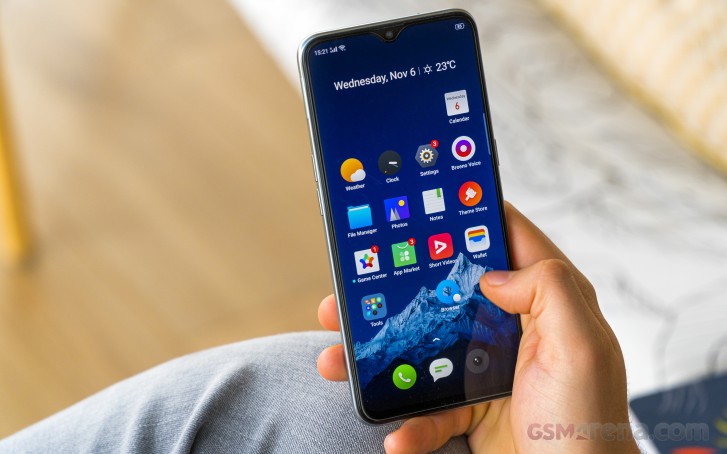
Anyway, the ColorOS 6.1 is a familiar thing, especially since we've reviewed it on the Realme X2 Pro, Although, this phone is currently running the Chinese ROM so we might see some small, negligible differences. Feature-wise, it's almost on par with the X2 Pro.

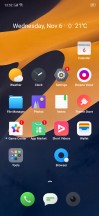
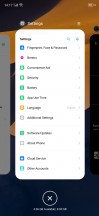
Lock screen, home screen, recent apps menu
You get to choose between the standard app drawer and displaying all of the apps on the home screen. In the home screen customization sub-menu, you can also find a rather exciting option to speed up animations related to opening and closing apps. It's set to "fast" by default, so we suggest keeping it that way.
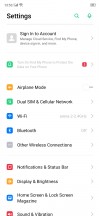
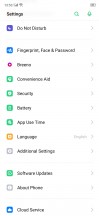
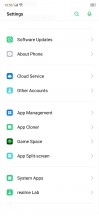
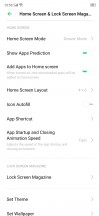
General settings menu and home screen settings
The notification shade is different from most we've seen - it drops down with a single swipe displaying two rows of the quick toggles and the notifications as opposed to showing just one row of quick toggles. The brightness slider is also the first one to show up.
A second swipe down reveals the other two rows of toggles. It reminds us of the old days before Android 5.0 Lollipop when a single swipe was all you need to bring down the notification shade. We kind of like that implementation here - it requires fewer swipes depending on what you are looking for.

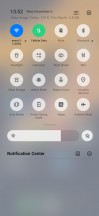
Notification shade
Speaking of navigation, we are happy to see the broad choice of navigation methods Realme provides with ColorOS. The default option is set to "Swipe Gestures from Both Sides", which is basically Android 10's new gestures. Swiping from the left or right edge of the screen takes you one step back, a single swipe from the bottom bezel acts as a home button while swipe and hold brings out the recent apps menu.
The quick switch gesture is rather tricky. Swipe up, hold and imagine you are throwing the app window to the right - this gesture will switch over to the last used app. However, we find that gesture quite fiddly and it works around 30% of the time. It needs more work. We've had the same issue with the Realme X2 Pro, so it's not ROM version-related.
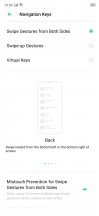
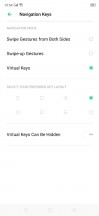
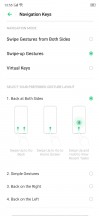
Navigation gestures and navigation keys options
There's an alternative set of gestures that are the same but the back action has been moved to the bottom bar - right or left off-centered swipe up works as a back button. And those of you who are still struggling with the new navigation gestures, you can still use the old software navigation keys if you prefer.
The fingerprint reader is one of the strongest suits of the phone. Just like its more expensive sibling, the phone uses the latest third generation Goodix optic under-display fingerprint reader. It illuminates your finger with white light, as opposed to the green one on the previous generation and it works pretty well. It's super reliable, fast and accurate. We've had just a few misreadings over the course of writing this review and that really says something. We can say it's the best-in-class UD fingerprint scanner.
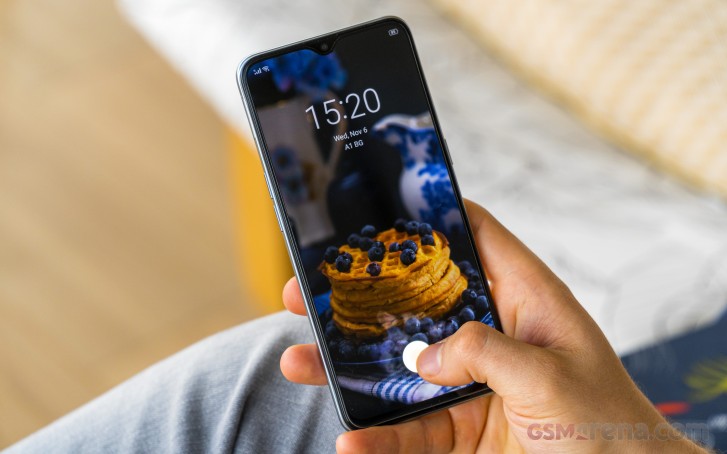
Additional options like per-app lock and different fingerprint animation effects are also available. And for maximum convenience, you can set the screen to illuminate the fingerprint area when you move the phone or when you double-tap on the screen.
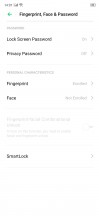
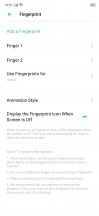
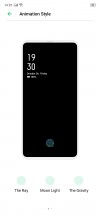
Biometrics options
There's also the less-secure face unlock option using only the front-facing camera, which is also quite fast and reliable although less secure. It can be fooled with a mug shot since the camera doesn't have depth perception.
The so-called Convenience aid menu offers an Assistive ball and Smart sidebar. The first one is basically a ball that can be moved around the screen, and you can execute various gestures with it, helping out with the navigation through menus. The sidebar, on the other hand, offers shortcuts to apps and tasks. You can pull it out from the right edge of the screen and then customize it to your liking. It's something like Samsung's Edge panel but less customizable.
The usual screen-off gestures are also at your disposal. You can summon the camera by drawing "O" or draw "V" on a locked screen to turn on the flashlight. Music control is another useful feature when streaming over a Bluetooth device or headphones without hardware controls.

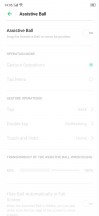
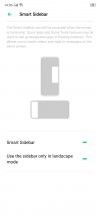
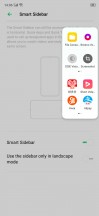
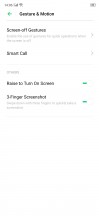
Assistive ball, smart sidebar and screen-off gestures
The system-wide dark mode that ColorOS 6.1 offers is pretty sweet too. It applies the dark theme not only to the system menus but to third-party apps as well. It works pretty well in most cases and it's nice to have it ahead of the Android 10 release, which promises a more refined dark theme that works with all apps.


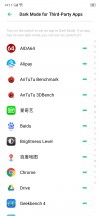
Dark mode
And finally, the battery menu holds a couple of additional settings on top of the usual ones that Android Pie offers. There's a power-saving mode that can be triggered at a certain battery level a so-called smart power saver that optimizes apps that you don't use all that often and an App Quick Freeze option. The system freezes apps that you don't often open or use at all to keep them from running in the background and messing up your battery life. It remains questionable whether this is a good solution, especially when having several chat clients with some of them being used rarely. Then again, you can always whitelist some of the apps but less tech-savvy users might be intmidated by the extra legwork needed.
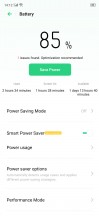
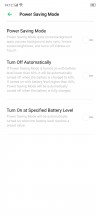

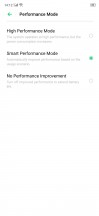
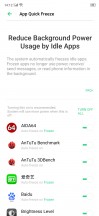
Battery menu
Additionally, three performance modes are at your disposal - an automatic one, which is the default one, one that doesn't improve performance, and the third one is high-performance mode, which is pretty self-explanatory. Use the latter when playing games.
In terms of overall usability and experience, we can't think of anything bad to say about the ColorOS. Aside from the quick switch gesture that needs more tweaking, we found it to be a snappy custom skin overlay with plenty of options and features to play around with. We even found it to be just as fast as on the Realme X2 Pro despite the vanilla X2 having a considerably less powerful SoC. And despite all the bloatware with which the Chinese version of this ROM ships with.
On the other hand, stock Android fans might find themselves overwhelmed by the heavy customization ColorOS has to offer so keep that in mind.
Performance
The Realme X2 is built around a particularly powerful mid-range SoC - the Snapdragon 730G. The chipset is a variation of the vanilla Snapdragon 730 but with a slightly more powerful GPU due to the higher clock speeds. It's still the same Adreno 618 GPU, though. It's just that the 730G has 50 MHz higher clocks than the 500 MHz-clocked vanilla Snapdragon 730.
On the CPU front, we have 2x Kryo 470 Gold cores (Cortex-A76 derivatives) ticking at 2.2 GHz and 6x Kryo 470 Silver cores (cortex-A55 derivatives) for less-demanding tasks to save on power. They are clocked at 1.8 GHz. The CPU is built on the 8nm LPP node.
GeekBench 4.1 (multi-core)
Higher is better
-
Realme X2 Pro
10373 -
Oppo Reno2
7001 -
Realme X2
6926 -
Oppo Reno2 (High performance mode)
6881 -
Xiaomi Mi 9T
6863 -
Samsung Galaxy A70
6584 -
Realme 5 Pro
6106 -
Realme XT
6102 -
Realme X
5915 -
Nokia 7.2
5440
GeekBench 4.1 (single-core)
Higher is better
-
Realme X2 Pro
3527 -
Oppo Reno2
2547 -
Xiaomi Mi 9T
2537 -
Oppo Reno2 (High performance mode)
2536 -
Realme X2
2508 -
Samsung Galaxy A70
2391 -
Realme 5 Pro
1913 -
Realme XT
1899 -
Nokia 7.2
1534 -
Realme X
1475
GeekBench 5 (multi-core)
Higher is better
-
Realme X2 Pro
2602 -
Oppo Reno2
1752 -
Realme X2
1744 -
Oppo Reno2 (High performance mode)
1731 -
Realme XT
1569 -
Nokia 7.2
1425
GeekBench 5 (single-core)
Higher is better
-
Realme X2 Pro
589 -
Oppo Reno2
548 -
Realme X2
547 -
Oppo Reno2 (High performance mode)
544 -
Realme XT
410 -
Nokia 7.2
336
AnTuTu 7
Higher is better
-
Realme X2 Pro
396827 -
Redmi Note 8 Pro
224759 -
Oppo Reno2 (High performance mode)
217008 -
Realme X2
215578 -
Oppo Reno2
214097 -
Xiaomi Mi 9T
211915 -
Realme XT
185193 -
Realme 5 Pro
182765 -
Samsung Galaxy A70
167750 -
Nokia 7.2
139495
GFX 3.1 Manhattan (1080p offscreen)
Higher is better
-
Realme X2 Pro
78 -
Oppo Reno2
30 -
Oppo Reno2 (High performance mode)
30 -
Realme X2
29 -
Redmi Note 8 Pro
29 -
Realme 5 Pro
27 -
Xiaomi Mi 9T
27 -
Realme XT
26 -
Nokia 7.2
15 -
Samsung Galaxy A70
15
GFX 3.1 Manhattan (onscreen)
Higher is better
-
Realme X2 Pro
57 -
Oppo Reno2
26 -
Oppo Reno2 (High performance mode)
26 -
Realme X2
24 -
Redmi Note 8 Pro
24 -
Xiaomi Mi 9T
24 -
Realme XT
23 -
Realme 5 Pro
22 -
Nokia 7.2
13 -
Samsung Galaxy A70
13
GFX 3.1 Car scene (1080p offscreen)
Higher is better
-
Realme X2 Pro
47 -
Redmi Note 8 Pro
18 -
Oppo Reno2
17 -
Oppo Reno2 (High performance mode)
17 -
Realme X2
16 -
Xiaomi Mi 9T
16 -
Realme 5 Pro
15 -
Realme XT
15 -
Nokia 7.2
9 -
Samsung Galaxy A70
8
GFX 3.1 Car scene (onscreen)
Higher is better
-
Realme X2 Pro
37 -
Redmi Note 8 Pro
14 -
Oppo Reno2
14 -
Oppo Reno2 (High performance mode)
14 -
Realme X2
13 -
Realme XT
13 -
Xiaomi Mi 9T
13 -
Realme 5 Pro
12 -
Nokia 7.2
8.1 -
Samsung Galaxy A70
7
3DMark SSE 3.1 Unlimited
Higher is better
-
Realme X2 Pro
5792 -
Realme X2
2576 -
Oppo Reno2
2573 -
Oppo Reno2 (High performance mode)
2556 -
Redmi Note 8 Pro
2439 -
Xiaomi Mi 9T
2329 -
Realme XT
2284 -
Realme 5 Pro
2253 -
Nokia 7.2
1427 -
Samsung Galaxy A70
1112
As expected, the raw single-threaded and multi-threaded CPU performance is pretty strong thanks to those big Cortex-A76 cores.
The higher clocked GPU appears to have a slight edge over its vanilla sibling, which should come in handy during gaming. The combined AnTuTu 7 scores are here to attest.
Still, the difference shown in synthetic benchmarks is too little to felt by most users when gaming. The 50 MHz higher clocks offer insignificant gains. That doesn't mean we are not happy with the overall performance of the SoC, though. The Snapdragon 730G is a pretty competent mid-range SoC - a spiritual successor to the Snapdragon 660.


Tip us
2.1m 180k
RSS
EV
Merch
Log in I forgot my password Sign up